
Your iPhone can do much more than make calls, send messages, take photos, and browse the internet. The problem is that some of its most useful features are hidden inside settings or activated by gestures that many people never discover.
Instead of showing you random iPhone tricks that you might try once and forget, this guide focuses on hidden iPhone features that can genuinely make everyday tasks faster and easier.
From typing common phrases in seconds to scanning paperwork, sharing Wi-Fi without saying the password, and moving the cursor precisely while writing, these are features worth learning.
1. Turn the Back of Your iPhone Into a Shortcut
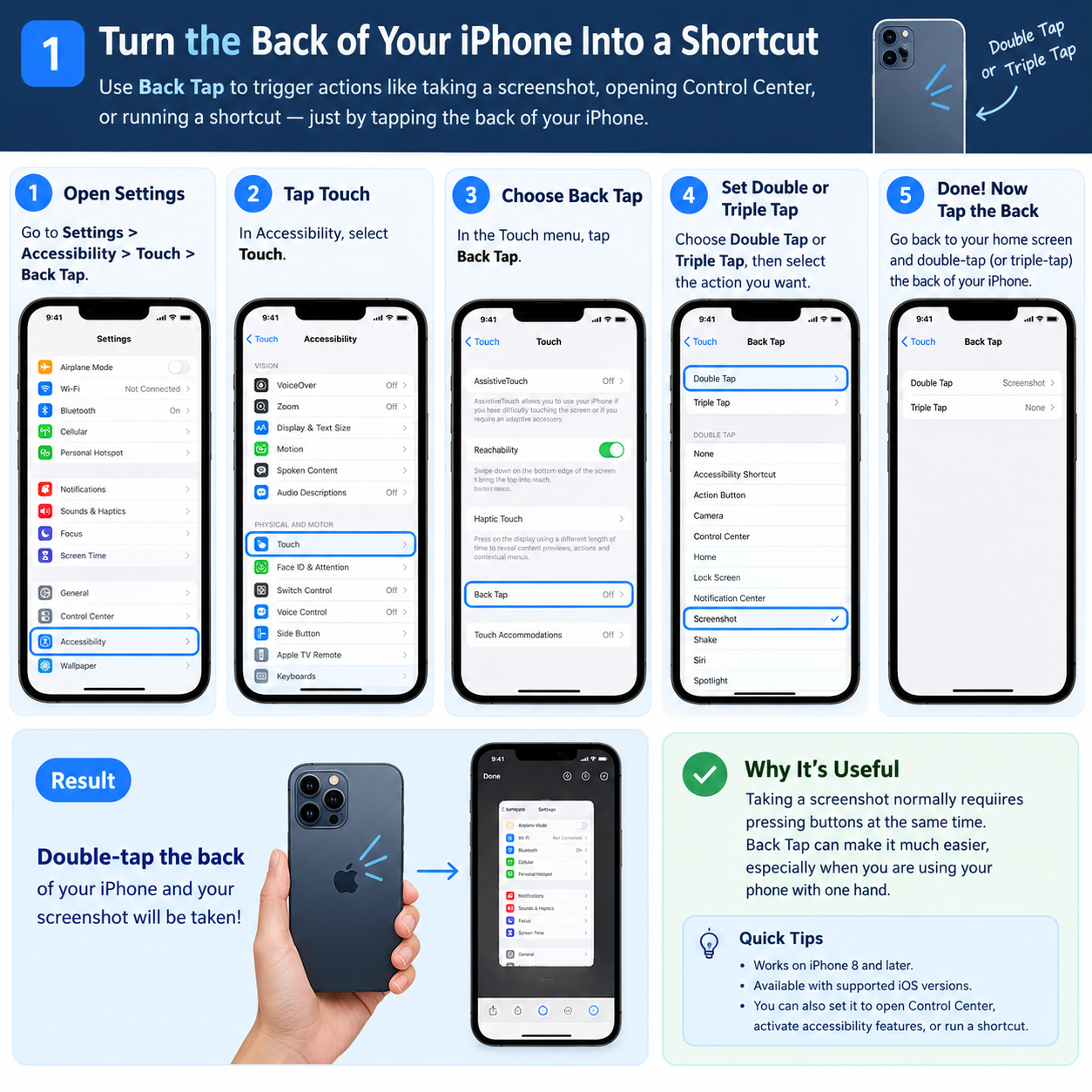
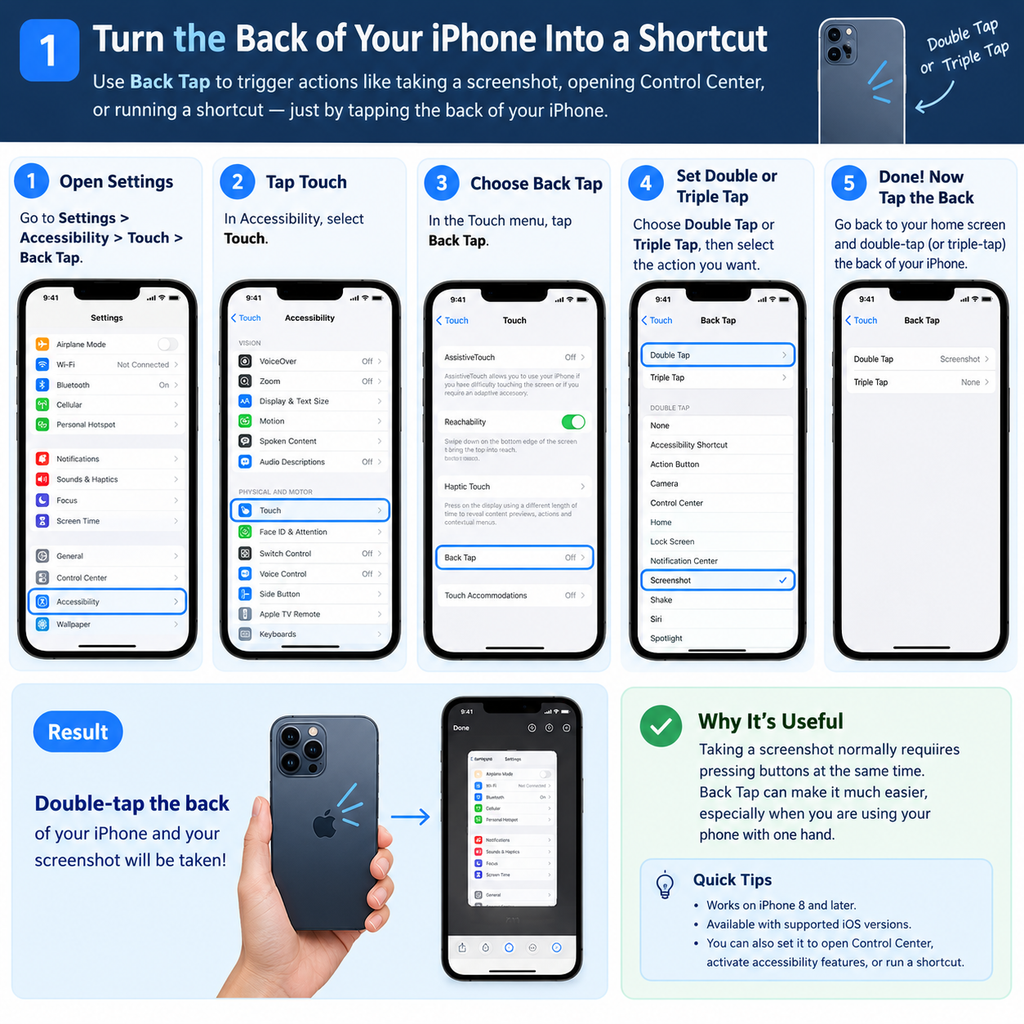
One of the most useful features hiding in Accessibility settings is Back Tap. It lets you double-tap or triple-tap the back of your iPhone to trigger an action.
You can use it to take a screenshot, open Control Center, activate an accessibility feature, or run a shortcut. Back Tap is available on iPhone 8 and later with supported iOS versions.
How to use Back Tap
Go to Settings > Accessibility > Touch > Back Tap.
Choose Double Tap or Triple Tap.
Select the action you want to trigger.
For example, set Double Tap to Screenshot.
Now, when you double-tap the back of your iPhone, it will take a screenshot.
Why it is useful: Taking a screenshot normally requires pressing buttons at the same time. Back Tap can make it much easier, especially when you are using your phone with one hand.
2. Type Long Phrases With Just a Few Characters
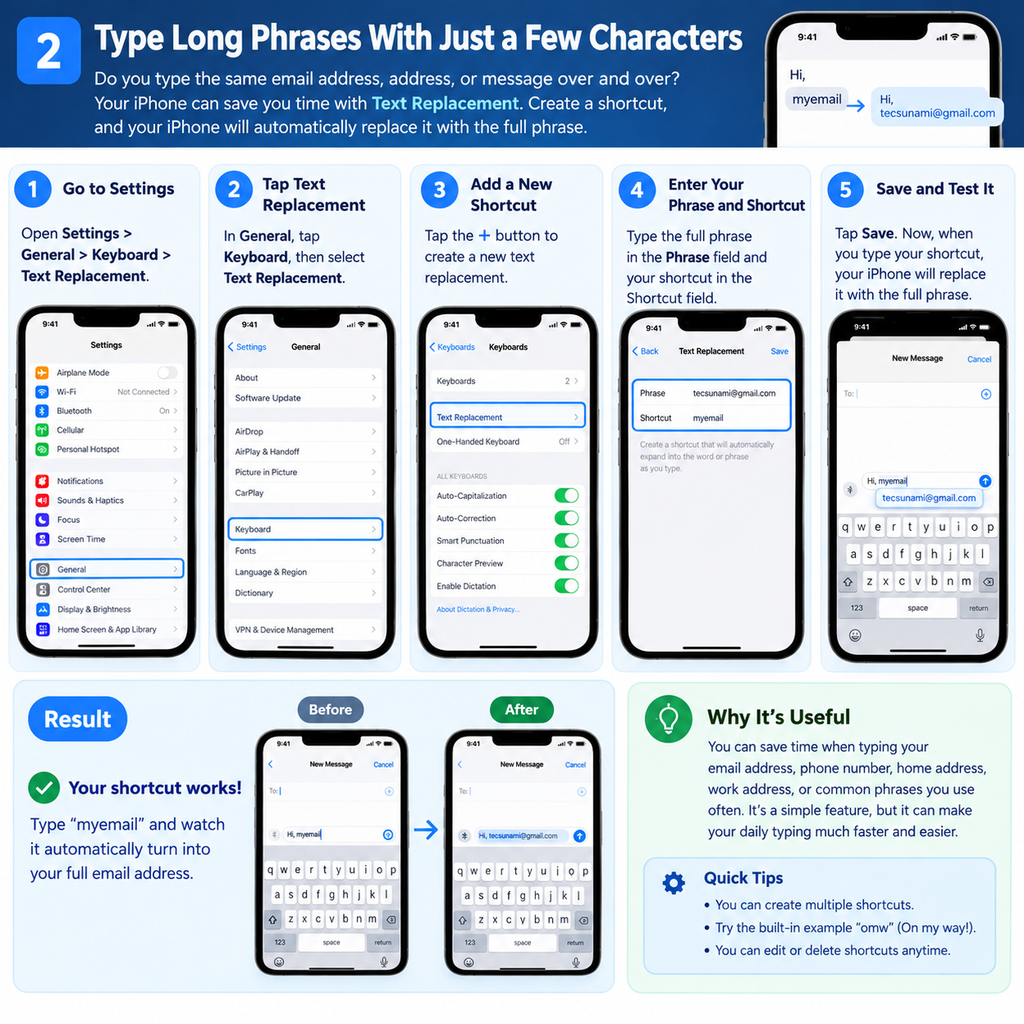
Do you repeatedly type the same email address, greeting, address, or message? Your iPhone can create a shortcut for it using Text Replacement.
For example, you could create the shortcut myemail and have your complete email address appear automatically.
How to set it up
Go to Settings > General > Keyboard > Text Replacement.
Tap the + button.
Enter the full phrase in Phrase.
Enter your shortcut under Shortcut.
Tap Save.
The next time you type that shortcut, your iPhone can replace it with the longer phrase. Apple even provides “omw” as a built-in example for “On my way!”
Why it is useful: This can save time when typing work responses, email addresses, phone numbers, addresses, or phrases you use repeatedly.
3. Copy Text From the Real World With Live Text
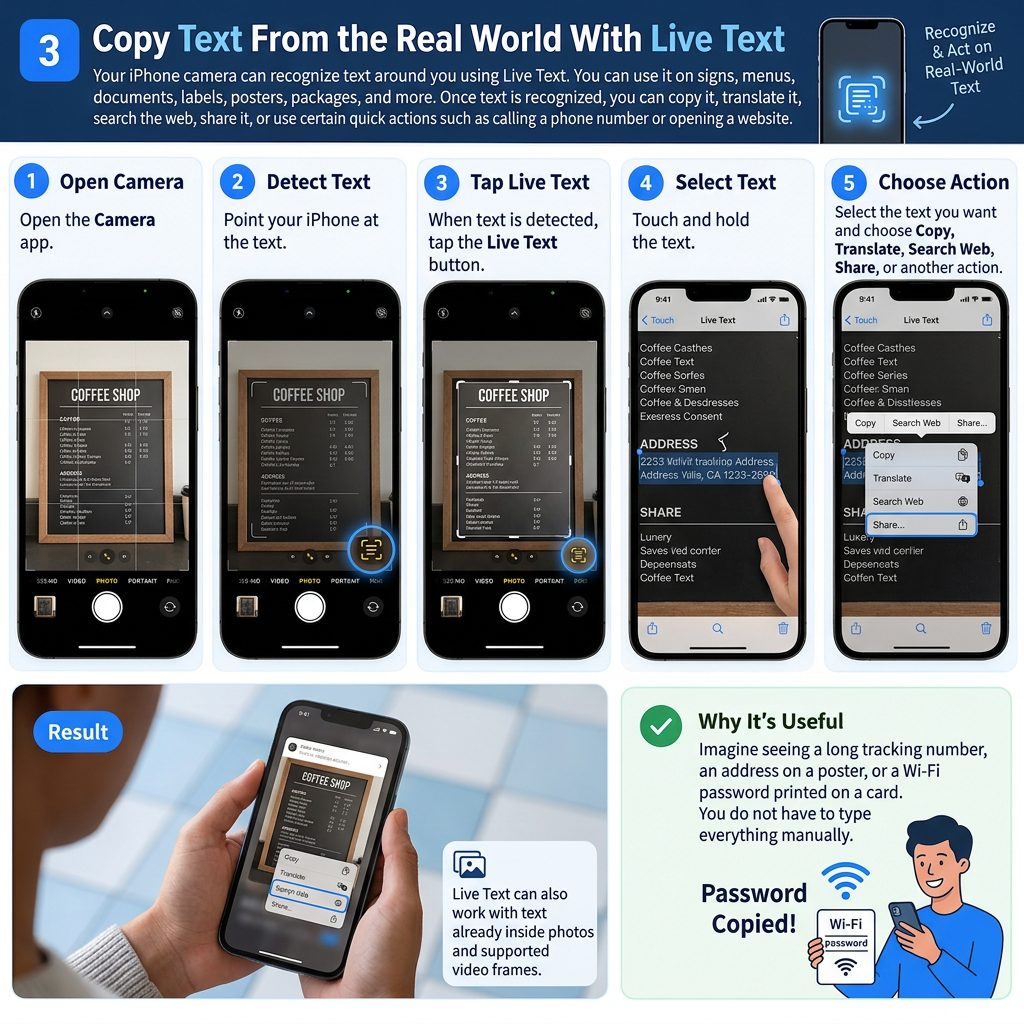
Your iPhone camera can recognize text around you using Live Text. You can use it on signs, menus, documents, labels, posters, packages, and more.
Once text is recognized, you can copy it, translate it, search the web, share it, or use certain quick actions such as calling a phone number or opening a website.
How to use Live Text
Open the Camera app.
Point your iPhone at the text.
When text is detected, tap the Live Text button.
Touch and hold the text.
Select the text you want and choose Copy, Translate, Search Web, Share, or another available action.
Live Text can also work with text already inside photos and supported video frames.
Why it is useful: Imagine seeing a long tracking number, an address on a poster, or a Wi-Fi password printed on a card. You do not have to type everything manually.
4. Turn Your iPhone Into a Document Scanner
You do not need a separate scanner just to digitize a receipt, form, contract, or school document. The Notes app can scan documents and save them as PDFs.
How to scan a document
Open Notes and create or open a note.
Tap the Attachments button.
Choose Scan Documents.
Point your iPhone at the document.
Your iPhone can automatically capture the page when it detects its edges, or you can capture it manually.
Adjust the corners if necessary and continue scanning additional pages.
Tap Done when finished.
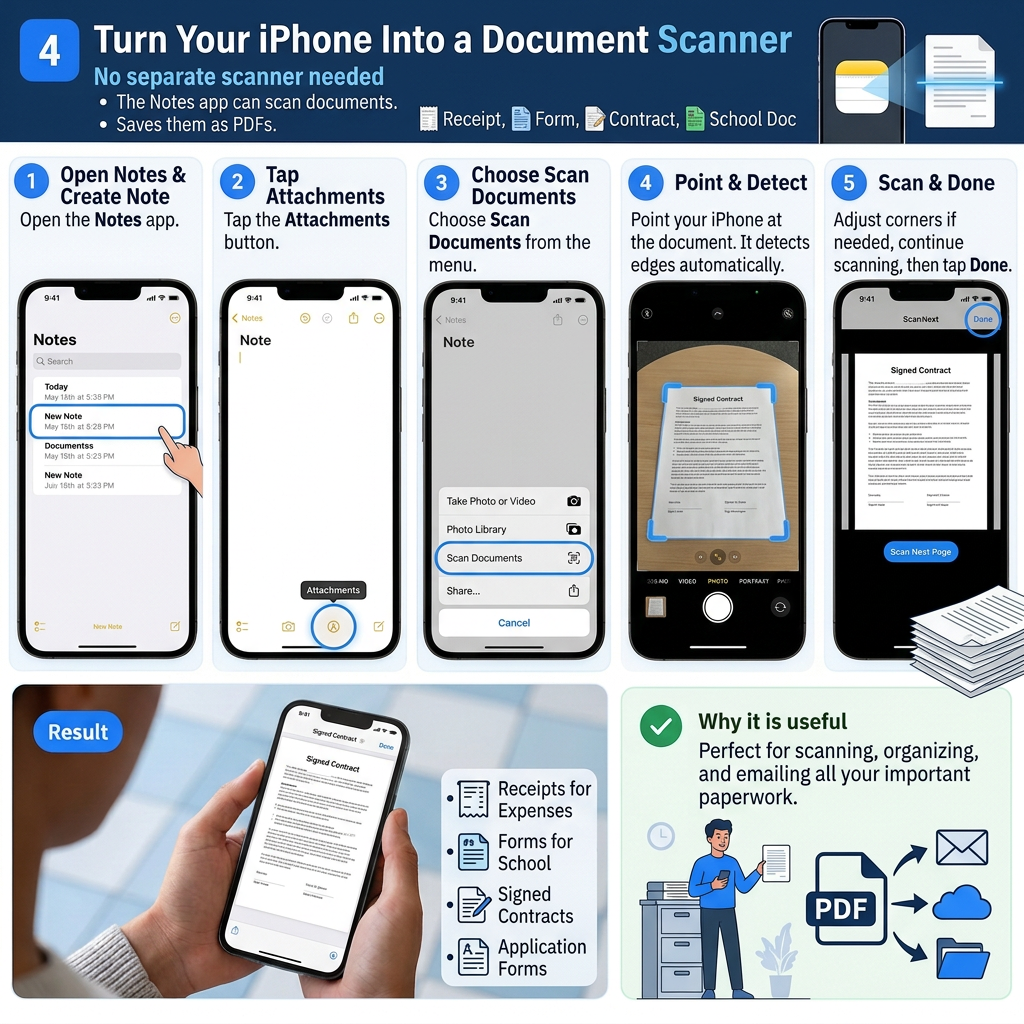
The scanned document is saved as a PDF in your note.
Why it is useful: It is perfect for receipts, paperwork, signed forms, applications, and documents you need to send by email.
5. Schedule a Message Instead of Sending It Immediately
Sometimes you remember something at the wrong time. Maybe it is late at night, you want to send a birthday message tomorrow morning, or you need to remind someone about something at a specific time.
With iMessage, you can use Send Later to schedule a message. Apple currently allows messages to be scheduled up to 14 days ahead.
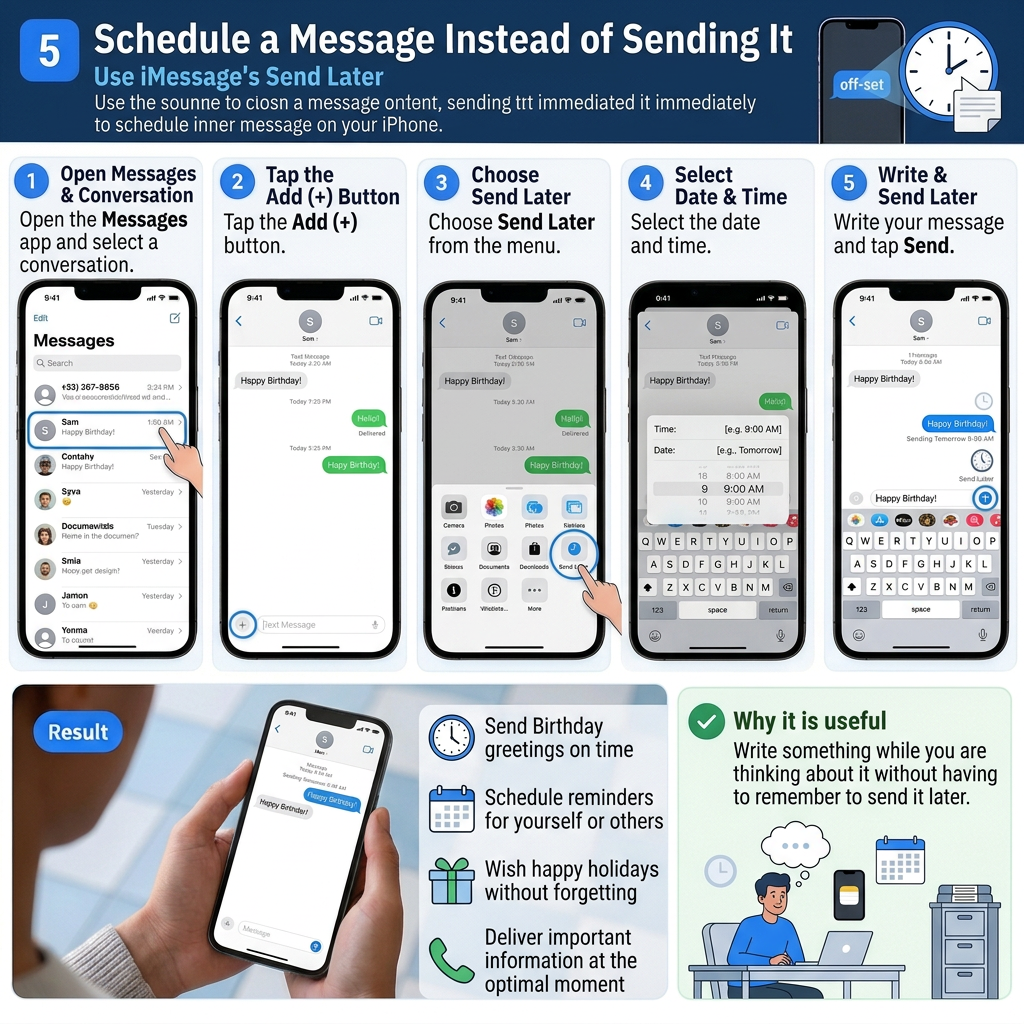
How to schedule a message
Open Messages.
Open a conversation.
Tap the Add (+) button.
Choose Send Later.
Select the date and time.
Write your message and tap Send.
The scheduled message remains in the conversation until its delivery time.
Why it is useful: You can write something while you are thinking about it without having to remember to send it later.
6. Make the Top of the Screen Easier to Reach
Modern iPhones can be difficult to use with one hand, especially when the button or menu you need is near the top of the display.
That is where Reachability can help. It temporarily moves the top half of the screen downward so you can reach it with your thumb.
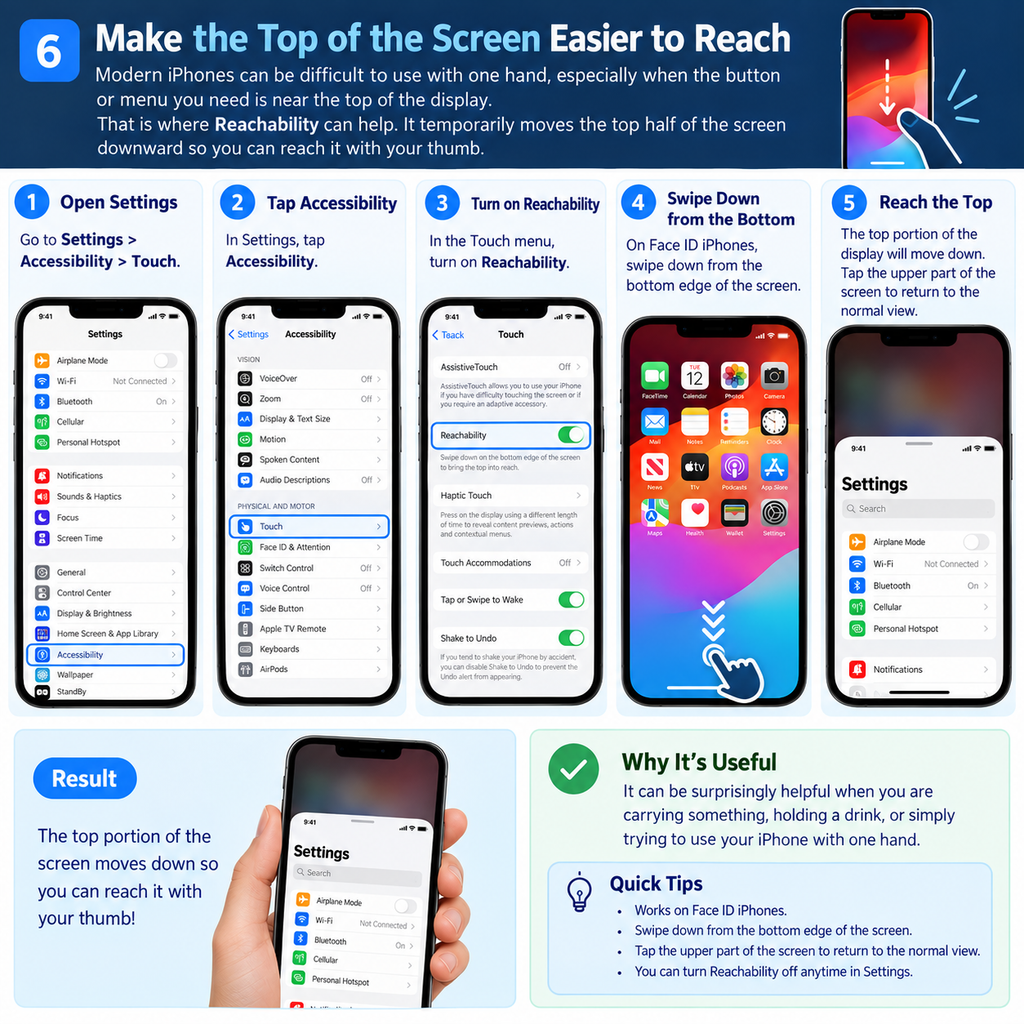
How to turn on Reachability
Go to Settings > Accessibility > Touch.
Turn on Reachability.
On Face ID iPhones, swipe down from the bottom edge of the screen.
The top portion of the display will move down.
Tap the upper part of the screen to return to the normal view.
Why it is useful: It can be surprisingly helpful when you are carrying something, holding a drink, or simply trying to use your iPhone with one hand.
7. Turn the Keyboard Into a Trackpad
Editing text on a touchscreen can be frustrating when the cursor refuses to land exactly where you want it.
There is a simple solution: turn the iPhone keyboard into a trackpad.
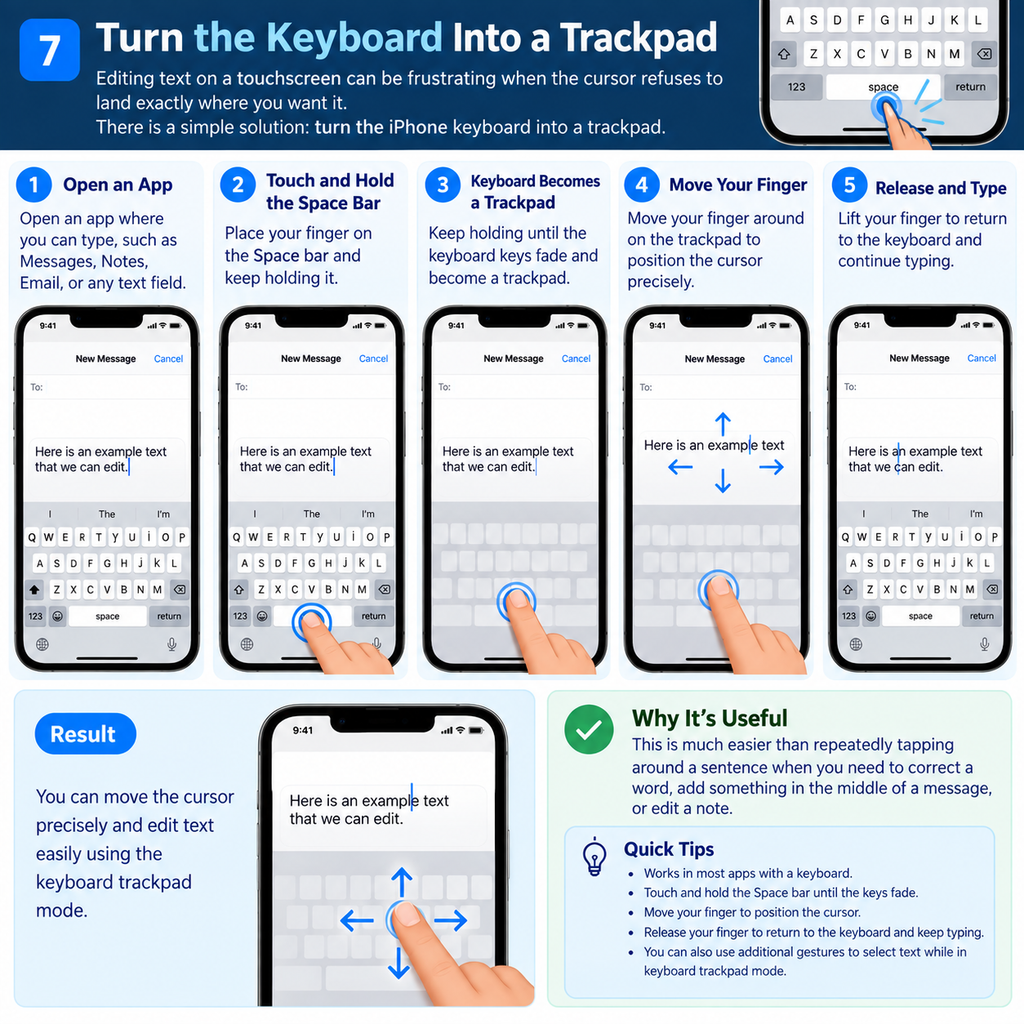
How to use it
Open an app where you can type.
Touch and hold the Space bar.
Keep holding until the keyboard becomes a trackpad.
Move your finger around to position the cursor precisely.
Apple also supports additional gestures for selecting text while using keyboard trackpad mode.
Why it is useful: This is much easier than repeatedly tapping around a sentence when you need to correct a word, add something in the middle of a message, or edit a note.
8. Share Your Wi-Fi Password Without Reading It Out
Wi-Fi passwords can be long, complicated, and impossible to remember. Fortunately, iPhone has a built-in way to share a Wi-Fi password with another nearby Apple device.
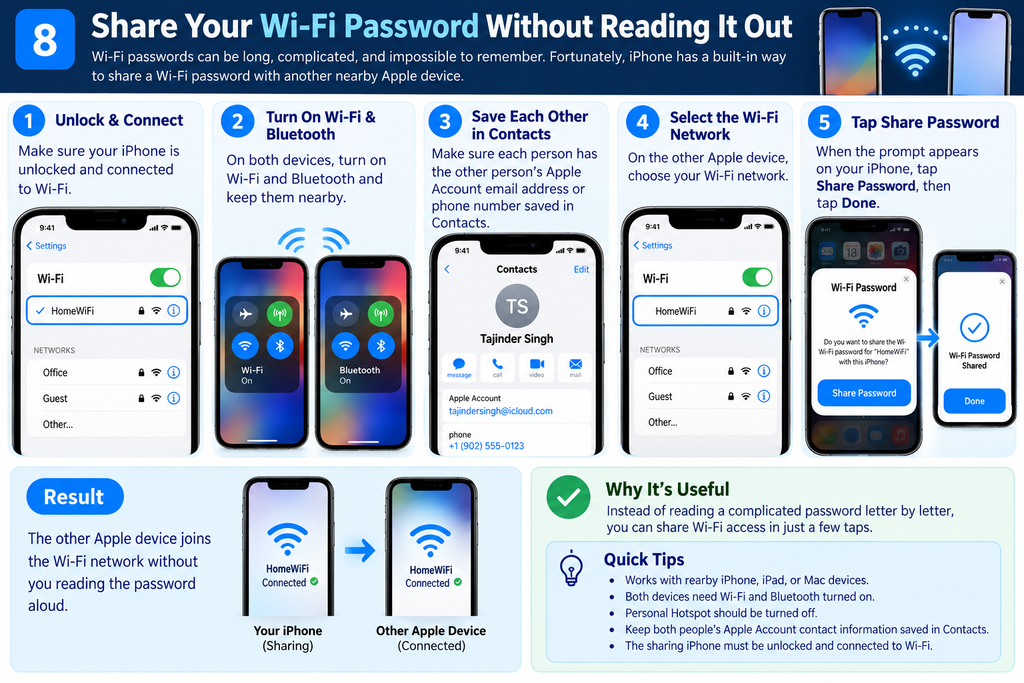
How to use it
Make sure your iPhone is unlocked and connected to Wi-Fi.
Make sure the other person’s device has Wi-Fi and Bluetooth turned on and is nearby.
The other person should select your Wi-Fi network.
A sharing prompt should appear on your iPhone.
Tap Share Password, then tap Done.
Apple’s instructions also require the relevant Apple Account contact information to be saved in Contacts for the automatic sharing process.
Why it is useful: Instead of reading a complicated password letter by letter, you can share access in just a few taps.
9. Find a Word on a Long Webpage Instantly
Ever opened a long webpage and spent several minutes scrolling just to find one word, product specification, name, or sentence?
Safari has a built-in Search Document function that lets you search within the current webpage.
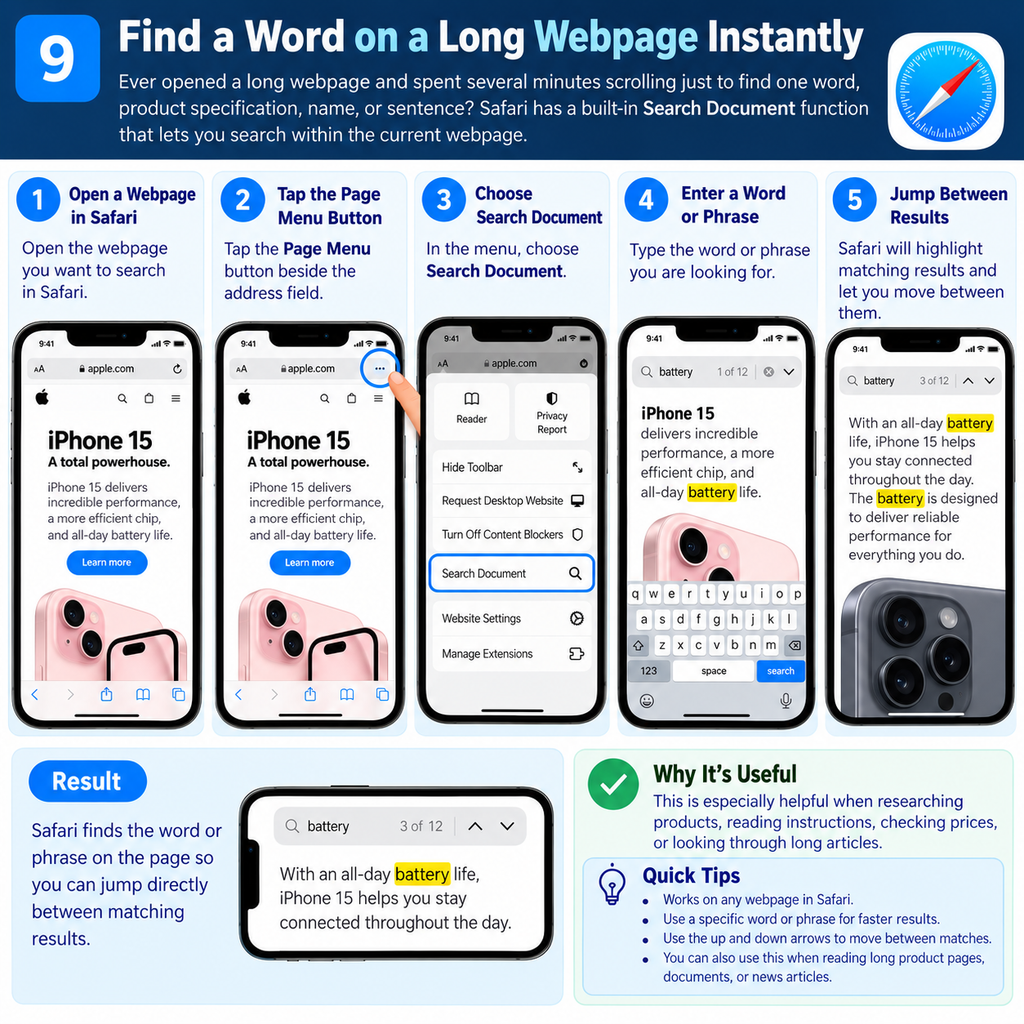
How to use it
Open a webpage in Safari.
Tap the Page Menu button beside the address field.
Choose Search Document.
Enter the word or phrase you are looking for.
Safari will jump between matching results on the page.
Why it is useful: This is especially helpful when researching products, reading instructions, checking prices, or looking through long articles.
10. Press and Hold App Icons for Hidden Shortcuts
Most people simply tap an app icon to open it. However, many iPhone apps have Quick Actions that appear when you touch and hold the icon.
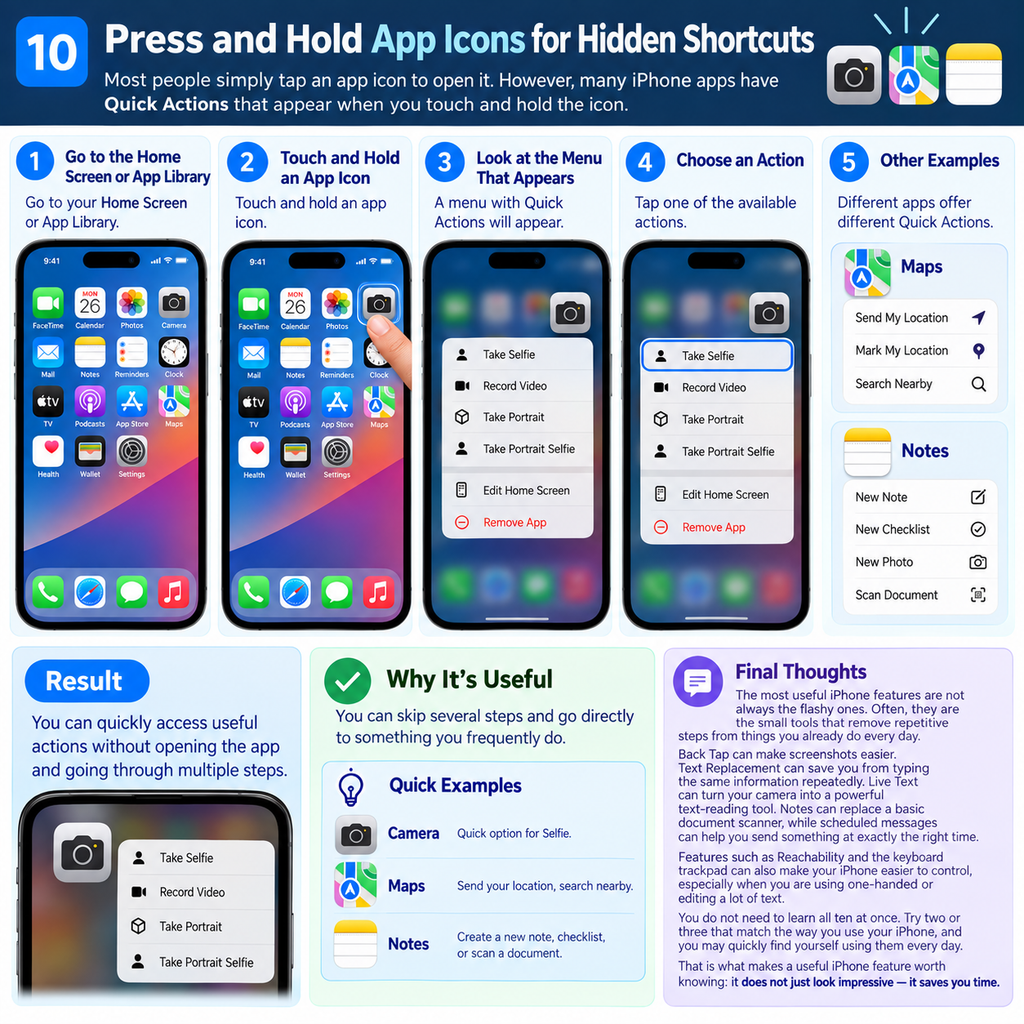
How to use Quick Actions
Go to the Home Screen or App Library.
Touch and hold an app icon.
Look at the menu that appears.
Choose one of the available actions.
For example, holding the Camera icon can provide a quick option for Selfie. Maps can provide actions such as sending your location, while Notes can offer a shortcut for creating a new note.
Why it is useful: You can skip several steps and go directly to something you frequently do.
11. Lock or Hide Apps With Face ID
This is especially useful for apps containing private information, such as messaging, photos, notes, banking, or personal documents.
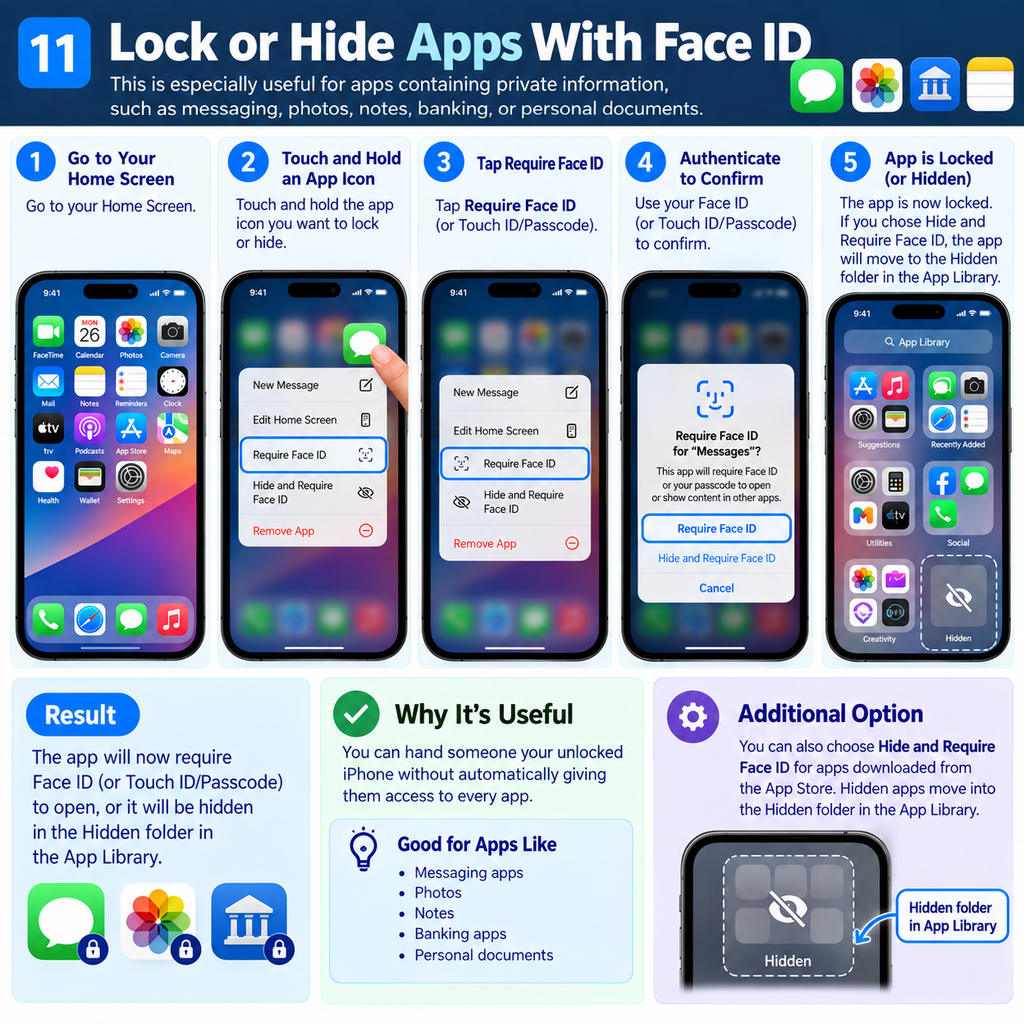
How to use it:
- Go to your Home Screen.
- Touch and hold the app icon.
- Tap Require Face ID (or Touch ID/Passcode).
- Authenticate to confirm.
You can also choose Hide and Require Face ID for apps downloaded from the App Store. Hidden apps move into the Hidden folder in the App Library.
Why it’s useful: You can hand someone your unlocked iPhone without automatically giving them access to every app.
12. Convert Currency, Measurements and More Directly in Calculator
A lot of people still open Google just to convert kilometers to miles, kilograms to pounds, or one currency to another. The iPhone’s Calculator can now do these conversions directly.
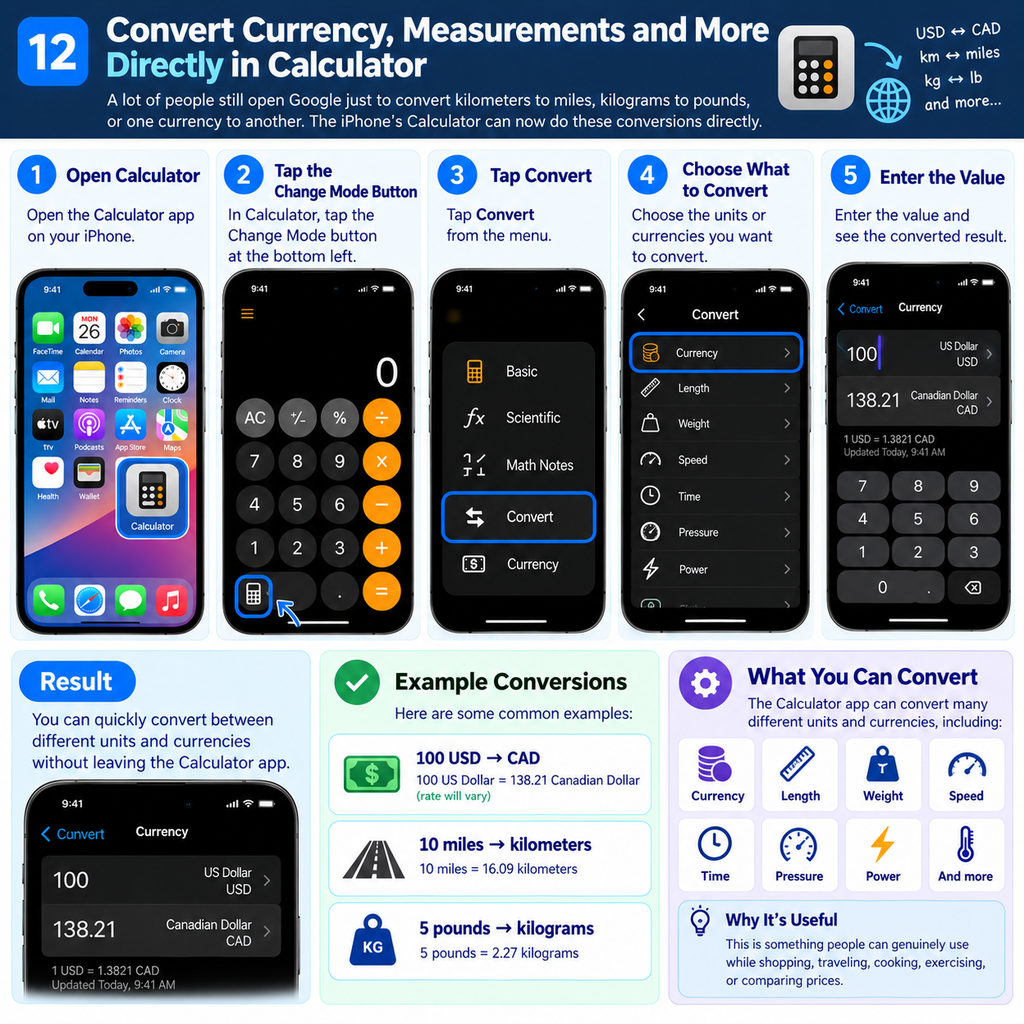
How to use it:
- Open Calculator.
- Tap the Change Mode button.
- Tap Convert.
- Choose the units or currencies you want to convert.
- Enter the value.
You can convert things such as length, weight, speed, time, pressure, power, and currency.
Example:
100 USD → CAD
10 miles → kilometers
5 pounds → kilograms
Why it’s useful: This is something people can genuinely use while shopping, traveling, cooking, exercising, or comparing prices.
Final Thoughts
The most useful iPhone features are not always the flashy ones. Often, they are the small tools that remove repetitive steps from things you already do every day.
Back Tap can make screenshots easier. Text Replacement can save you from typing the same information repeatedly. Live Text can turn your camera into a powerful text-reading tool. Notes can replace a basic document scanner, while scheduled messages can help you send something at exactly the right time.
Features such as Reachability and the keyboard trackpad can also make your iPhone easier to control, especially when you are using it one-handed or editing a lot of text.
You do not need to learn all at once. Try two or three that match the way you use your iPhone, and you may quickly find yourself using them every day.
That is what makes a useful iPhone feature worth knowing: it does not just look impressive—it saves you time.